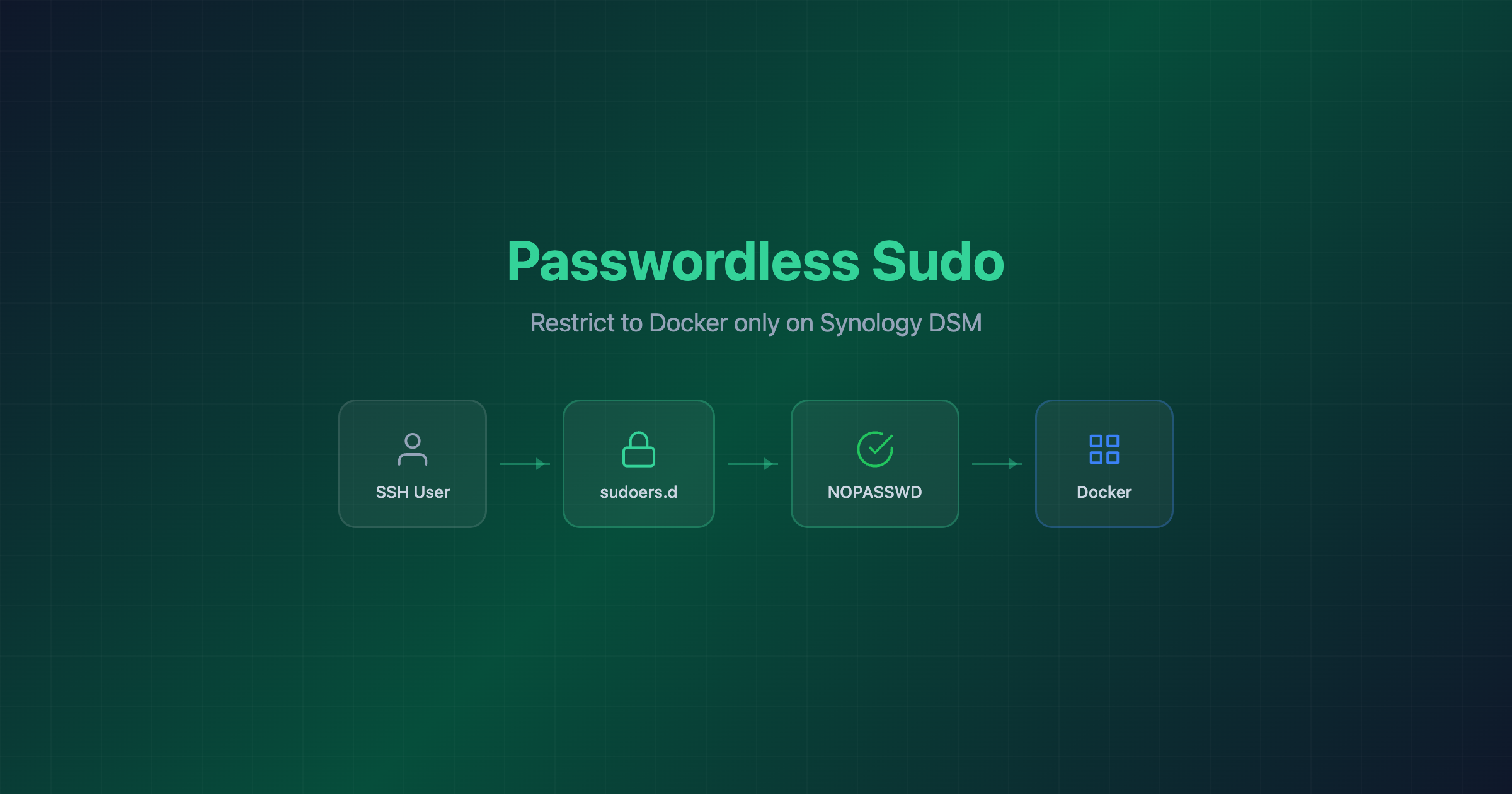
Passwordless sudo for Docker on Synology DSM
Docker on Synology DSM requires sudo for every command. if you’re tired of typing your password every time, here’s how to allow passwordless sudo docker via a sudoers drop-in file.
add docker to your PATH
DSM doesn’t include /usr/local/bin in your PATH by default, so you’d have to type the full path to docker every time. fix that by creating a ~/.profile:
echo 'export PATH="/usr/local/bin:$PATH"' > ~/.profile
log out and back in (or . ~/.profile) and you’re good. which docker should now return /usr/local/bin/docker.
add the sudoers rule
echo "$(whoami) ALL=(ALL) NOPASSWD: /usr/local/bin/docker, /usr/local/bin/docker-compose" | sudo tee /etc/sudoers.d/$(whoami)
this creates a file in /etc/sudoers.d/ that lets your user run docker and docker-compose without a password prompt.
verify
# no password needed
$ sudo docker ps
NAMES                       STATUS
dashboard                   Up 9 hours
cloudflare-tunnel           Up 10 hours
netdata                     Up 10 hours

# everything else still requires a password
$ sudo ls /root
sudo: a password is required
know the risks
passwordless sudo docker is convenient but not without consequences. anyone with access to your user account (compromised SSH key, stolen session, etc.) can now run arbitrary containers without any additional authentication. and since Docker runs as root, that means:
- mounting the host filesystem (
-v /:/host) gives full read/write access to everything on the NAS --privilegedcontainers can access host devices, load kernel modules, and escape the container entirely--net=host --pid=hostbreaks network and process isolation
in short — passwordless sudo docker is effectively passwordless root. it’s a tradeoff. for a home NAS behind a VPN with key-based SSH, that’s a risk I’m comfortable with. just make sure you are too.
note on DSM updates
DSM updates can reset both /etc/sudoers.d/ and ~/.profile, so you may need to re-apply these after a major update.
This post was written with the help of Claude (Opus 4), Anthropic’s AI assistant.
